Vertical Monitors Worth Buying for Code and Long Docs
The Dell UltraSharp U2723QE tops this list for its full pivot stand, 4K sharpness and single-cable USB-C docking. The Dell P2422H is the value pick for a straightforward 1080p portrait screen. The LG 27UP850N-W suits anyone wanting 4K portrait with strong color coverage.
A stand that pivots a full 90 degrees without resistance puts the Dell UltraSharp U2723QE ahead here, backed by an IPS Black panel that keeps contrast at an angle and single-cable USB-C docking. Value seekers land on the Dell P2422H for a simple 1080p screen standing on end. Color-critical work points instead to the LG 27UP850N-W, with wide gamut coverage and an equally capable stand.
Most listings never say whether the included stand actually pivots, and a screen that only rotates on an aftermarket arm is a different purchase entirely. Portrait orientation also exposes weak panels, since your eyes now sit across the wide axis rather than down it, and cheap TN screens shift color badly at that angle. We compared pivot range, stand height travel, panel technology, resolution scaling in portrait, port selection and VESA compatibility, weighed against owner reports on stand wobble and how easily each screen rotates in a crowded setup.
The shortlist, ranked

Dell UltraSharp U2723QE 27-Inch 4K Monitor
This is the monitor most people picture for a proper portrait setup, with a stand that pivots smoothly through 90 degrees and enough height travel to keep the top edge below eye level once rotated. An IPS Black panel holds contrast far better off-axis than standard IPS, useful once a tall screen pushes its edges further from your eyeline. Single-cable USB-C docking with power delivery keeps the desk clean.
Pros
- Full pivot moves smoothly with generous height adjustment
- IPS Black contrast holds up in portrait orientation
- USB-C docking replaces a separate hub
Cons
- Costs more than plain 4K panels without docking
- Text needs scaling adjustment at 27 inch 4K

LG 27UP850N-W 27-Inch UHD Monitor
Wide DCI-P3 gamut coverage pairs here with a stand that both pivots and raises, the combination editors need when a tall reference column sits beside a landscape timeline. USB-C carries video while charging a laptop at a useful wattage. A broad stand base means measuring the desk before planning a dual-screen arrangement.
Pros
- Strong color coverage for photo and design work
- Pivot and height adjustment both included
- USB-C charging suits laptop-first desks
Cons
- Large stand base eats into desk space
- On-screen menu controls feel fiddly

Dell P2422H 24-Inch Monitor
A second screen standing on its end for chat windows, terminals or documents is exactly what this monitor delivers. The stand pivots, tilts, swivels and raises, unusual at this price point, and thin bezels help when it sits beside a larger primary display. Resolution tops out at 1080p, so treat this as a companion screen rather than a detail panel.
Pros
- Full ergonomic stand at a modest price
- Thin bezels suit multi-monitor rows
- Built-in USB hub for peripherals
Cons
- 1080p looks coarse for detailed work
- No USB-C video input

ASUS ProArt Display PA278CV 27-Inch Monitor
A 27 inch 1440p panel hits something of a sweet spot for portrait code, showing plenty of lines without forcing the display scaling that blurs older applications. A pivoting stand, factory color calibration and USB-C with modest power delivery round out the package. Plain styling and weak built-in speakers are the tradeoffs, since the panel and stand carry this monitor.
Pros
- 1440p shows many code lines without scaling headaches
- Factory calibration works out of the box
- USB-C pairs with a genuinely usable USB hub
Cons
- USB-C power delivery falls short for larger laptops
- Built-in speakers sound weak

BenQ PD2705Q 27-Inch Designer Monitor
Designers bouncing between drawing, layout and reference material get an easy setup here, since the pivoting stand makes a long reference column simple to arrange. Color modes built for darkroom and CAD work go beyond marketing filler. Owners report the pivot action runs stiffer than Dell’s equivalents, so daily rotation takes a firmer hand.
Pros
- Preset color modes suit real design tasks
- USB-C docking includes decent charging power
- Sturdy chassis keeps wobble to a minimum
Cons
- Pivot action feels stiff compared with rivals
- Menu system takes time to learn
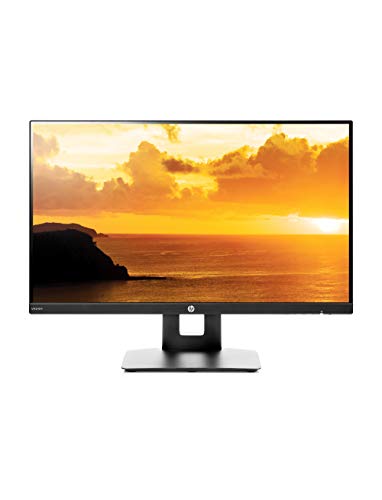
HP VH240a 23.8-Inch Monitor
A pivoting stand on an otherwise basic 1080p IPS panel has made this the default cheap portrait monitor for years. Chat windows, logs, social feeds or a document column beside a main screen all suit it fine. HDMI and VGA are the only inputs, so check what your machine actually outputs before ordering.
Pros
- Cheapest reliable route to a rotating screen
- IPS panel keeps color reasonable in portrait
- Light enough to rotate with one hand
Cons
- No DisplayPort or USB-C input
- Stand height range runs short
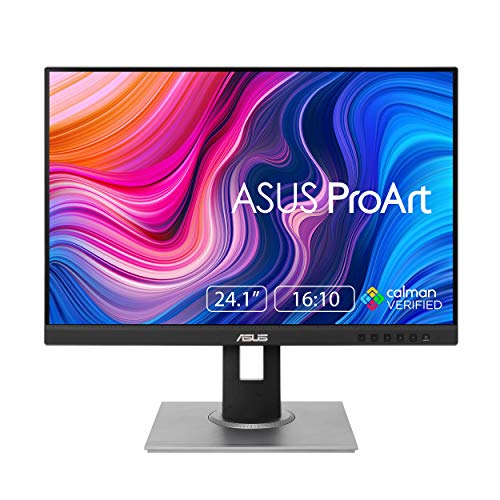
ASUS ProArt Display PA248QV 24.1-Inch Monitor
A 16:10 aspect ratio is the quiet advantage here, since rotated into portrait it gives a slightly wider column than a 16:9 panel, useful for full-page documents and long web layouts. Resolution sits at 1920 x 1200, and the stand pivots as standard. This is not a high-resolution panel, so treat it as a reading and reference screen rather than a photo display.
Pros
- 16:10 aspect gives a wider portrait column for documents
- Full ergonomic stand comes standard
- Calibrated color modes punch above the price
Cons
- Resolution runs modest for the screen size
- No USB-C connectivity
How to pick the right one
Does the stand actually pivot? Check this first Plenty of monitor listings show a rotated product shot without the stand actually supporting rotation. Look for pivot listed alongside tilt, swivel and height adjustment in the specification. A screen offering tilt only needs a VESA arm or stand to rotate, adding cost and desk-clamping requirements. Confirm the VESA pattern too, usually 100 x 100 millimeters on desktop monitors, before assuming an arm will fit.
Why does panel type matter more in portrait? Rotating a screen puts its long axis vertical, so your eyes now sit at a wider angle relative to the top and bottom edges. IPS panels hold color and brightness across those angles, while TN panels wash out or darken noticeably. VA panels sit in between and can show a vertical brightness gradient once rotated. Treat IPS as the practical minimum for portrait use.
What resolution makes sense for a vertical monitor? A 27 inch 4K panel rotated to portrait delivers beautiful text but usually needs display scaling, and older desktop applications can still render blurred at non-integer scaling. A 27 inch 1440p panel sidesteps that argument entirely while still fitting plenty of code on screen. At 24 inch, 1080p portrait works fine for chat and documents but looks coarse for detailed design work. Match resolution to what will actually live on that screen.
How much height and cable clearance do you need? A 27 inch screen stands roughly 60 centimeters tall once rotated, pushing the top edge above comfortable eye level on many desks. A stand with real height travel lets you drop the panel down to compensate. Cable routing changes too, since ports that once pointed down now point sideways, and stiff DisplayPort cables can foul the stand or press against a wall. Angled or flexible cables solve this cheaply.
Compared at a glance
| # | Model | Size and resolution | Best for | Score | Price |
|---|---|---|---|---|---|
| 1 | Dell UltraSharp U2723QE 27-Inch 4K Monitor | 27 inch, 3840 x 2160 | Best overall | 9.4 | Check price |
| 2 | LG 27UP850N-W 27-Inch UHD Monitor | 27 inch, 3840 x 2160 | Best for colour work | 9.1 | Check price |
| 3 | Dell P2422H 24-Inch Monitor | 24 inch, 1920 x 1080 | Best value | 8.8 | Check price |
| 4 | ASUS ProArt Display PA278CV 27-Inch Monitor | 27 inch, 2560 x 1440 | Best for developers | 8.6 | Check price |
| 5 | BenQ PD2705Q 27-Inch Designer Monitor | 27 inch, 2560 x 1440 | Best for mixed design work | 8.4 | Check price |
| 6 | HP VH240a 23.8-Inch Monitor | 23.8 inch, 1920 x 1080 | Best budget | 8.2 | Check price |
| 7 | ASUS ProArt Display PA248QV 24.1-Inch Monitor | 24.1 inch, 1920 x 1200 | Best for tall documents | 8.0 | Check price |
Questions worth asking
Do all monitors rotate to portrait mode?
No. Rotation depends on the stand supporting a pivot function, which many budget monitors skip. Look for pivot listed in the ergonomics section of the spec sheet, or plan on a VESA arm that provides the rotation instead.
How do I turn on portrait mode in Windows?
Open Display settings, select the monitor, then change Display orientation to Portrait or Portrait flipped depending on which way it rotated. Nvidia, AMD and Intel graphics control panels offer the same setting if preferred.
Is a vertical monitor better for programming?
Many developers prefer one, since more lines of code fit on screen without scrolling and long stack traces or log files read in a single view. It works best as a secondary screen beside a landscape primary rather than as the only display.
What size monitor works best rotated vertically?
24 and 27 inch panels form the practical range. Larger screens become uncomfortably tall once rotated, forcing constant up-and-down eye movement. A 24 inch panel keeps the whole column within easy reach, while 27 inch adds room if the desk allows a lower mount.
Do I need a monitor arm for portrait use?
Only if the monitor’s own stand does not pivot, or the screen needs to sit lower than the stand allows. An arm also frees desk space and makes switching between portrait and landscape easier depending on the task.
Does portrait orientation affect gaming?
Games generally assume a landscape aspect ratio and will letterbox or stretch awkwardly in portrait. Keep a landscape primary screen for gaming and reserve the rotated panel for chat, guides or streaming tools.
Will text look worse in portrait?
Subpixel rendering assumes a horizontal RGB layout, so rotating the panel can shift how text edges render. Modern IPS panels at 1440p or higher show only a minor effect. Lower-quality 1080p panels make it more noticeable.
Can I use a vertical monitor with a laptop?
Yes, and a USB-C monitor simplifies this since one cable carries video, data and charging. Check that the laptop’s port supports DisplayPort Alt Mode, since some USB-C ports handle data and power only.
Final word
The Dell UltraSharp U2723QE remains the pick for most desks, since its pivot works smoothly, the IPS Black panel stays consistent across the tall axis, and USB-C docking removes a pile of cables. A cheap second screen standing on end is better served by the Dell P2422H, which does that job well without wasted resolution. Color-focused buyers should stretch instead to the LG 27UP850N-W for its wider gamut and equally capable stand.
Marcus Chen
Marcus covered consumer electronics for enthusiast tech publications for six years before joining ChoiceCrest. He specializes in translating manufacturer spec sheets into plain-language buying advice, with a focus on audio, computing accessories and smart-home gear.