KVM Switches for Running Multiple Computers from One Desk
The TESmart 2-Port 4K60Hz HDMI KVM Switch is the best overall pick for most two-computer desks, offering sharp 4K passthrough and simple hotkey switching. Anyone running four machines should consider the IOGEAR GCS1944 instead, while modern laptop users benefit more from the USB-C docking style of the ATEN CS1964.
The TESmart 2-Port 4K60Hz HDMI KVM Switch covers the most common setup well, letting two computers share one keyboard, mouse, and 4K monitor through a simple hotkey. A desk running four separate machines needs the extra ports on the IOGEAR GCS1944, and anyone switching between USB-C laptops gets a cleaner docking experience from the ATEN CS1964.
KVM switches differ mainly in how many computers they support, what video resolution they pass through, and whether they handle modern USB-C laptops or older desktop setups. We compared port counts, video specs, and peripheral support to match each switch to a realistic desk setup.
What we recommend

TESmart 2-Port 4K60Hz HDMI KVM Switch
This switch passes through 4K video at 60Hz with HDR, keeping image quality identical to a direct monitor connection. A wired remote control allows switching between computers without reaching for the unit itself. USB 2.0 ports share a keyboard, mouse, and basic peripherals across both connected machines.
Pros
- Clean 4K60Hz passthrough with no visible lag
- Wired remote makes switching convenient
- Stable hotkey switching without dropped connections
Cons
- USB 2.0 ports limit peripheral transfer speeds
- Only supports two computers total

CKL 2-Port HDMI KVM Switch
CKL keeps this two-computer switch affordable while still supporting 4K video over HDMI. A physical button on the unit handles switching, which keeps the design simple with no software to install. USB 2.0 ports cover a standard keyboard and mouse setup for shared use.
Pros
- Low price for genuine 4K HDMI switching
- No drivers or software required
- Compact size fits easily on a crowded desk
Cons
- Button switching is less convenient than a remote
- Limited to two computers like most budget models
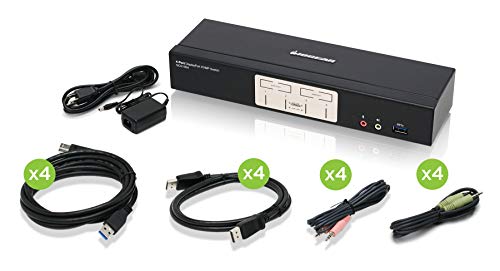
IOGEAR GCS1944 4-Port DisplayPort KVM Switch
IOGEAR built this switch to manage four separate computers from a single DisplayPort monitor, keyboard, and mouse. Audio switching moves alongside video, so sound follows whichever computer is active. USB 3.0 hub ports on the unit support faster peripherals like external drives.
Pros
- Handles four computers from one workstation
- USB 3.0 ports support faster peripherals
- Audio switching follows the active source automatically
Cons
- Takes up more desk space than two-port switches
- Pricier than simpler two-computer options

Belkin Advanced Secure KVM Switch
Belkin designed this switch for environments that require strict data isolation between connected computers, a common requirement in government and defense settings. Tamper-evident seals reveal if the unit has been opened or altered. Independent data paths prevent any cross-talk between sources, a requirement for certain compliance standards.
Pros
- Certified isolation suits compliance-driven workplaces
- Tamper-evident design flags unauthorized access attempts
- Push-button switching keeps operation straightforward
Cons
- Overbuilt and overpriced for a typical home office
- Fewer convenience features than consumer-focused switches

ATEN CS1964 USB-C KVM Switch
This switch is built around modern USB-C laptops, letting each one connect with a single cable that carries video, data, and charging power. Power delivery passthrough charges a connected laptop while it shares the monitor and peripherals. 4K video passes through cleanly for either connected machine.
Pros
- Single-cable docking simplifies daily laptop swaps
- Power delivery charges the laptop while docked
- Clean 4K video with no separate charger needed
Cons
- Only works with USB-C equipped laptops
- Not suited to older desktop towers without USB-C
StarTech SV431DPDDM Dual-Monitor DisplayPort KVM Switch
This switch supports two monitors per computer, so a dual-screen setup stays intact when switching between up to four machines. DisplayPort connections keep resolution and refresh rate consistent across sources. USB ports share a keyboard, mouse, and basic accessories across every connected computer.
Pros
- Keeps a full dual-monitor layout across every computer
- Supports four machines without losing screen real estate
- Consistent DisplayPort image quality across sources
Cons
- Requires two DisplayPort cables per computer
- More complex cable management than single-monitor switches

UGREEN Revodok 2-Port KVM Switch
UGREEN focuses this switch on straightforward setup, with no drivers or configuration needed before use. An HDMI connection handles video while USB ports share a keyboard and mouse between two computers. A single button on the housing switches the active source instantly.
Pros
- Works immediately with no software installation
- Compact housing fits small desk spaces
- Reliable button switching between two sources
Cons
- Limited to two computers only
- Fewer high-end features than premium switches
What to look for
What to look for in a KVM switch Computer count sets the baseline, since a two-port switch cannot grow into a four-computer setup later. Video resolution and refresh rate need to match your monitor, as a switch capped at 4K30Hz will visibly stutter a 4K60Hz display. USB version affects peripheral speed, with USB 2.0 fine for a keyboard and mouse but limiting for external drives. Switching method, whether a physical button, hotkey, or wired remote, affects daily convenience more than most buyers expect.
Choosing a switch for more than two computers A desk running three or four machines needs a dedicated multi-port switch like the IOGEAR GCS1944 or StarTech SV431DPDDM rather than chaining smaller switches together. Audio switching becomes more important at this scale, since manually changing sound sources on every switch gets tedious fast. Confirm the video connector type matches every computer, since mixing HDMI and DisplayPort sources on one multi-port switch is not always supported.
When a secure or isolated KVM switch is necessary Standard consumer KVM switches are not built for environments with strict data separation requirements, which is where a certified option like the Belkin Advanced Secure KVM Switch fits. These switches isolate data paths between sources at a hardware level, satisfying compliance standards that consumer models do not meet. A home office or small business setup rarely needs this level of isolation.
Why USB-C KVM switches suit modern laptop users Laptops with USB-C have simplified docking considerably, and a switch like the ATEN CS1964 takes advantage of that with a single cable carrying video, data, and charging power. This setup avoids the cable clutter of older KVM switches that needed separate video, USB, and power connections per machine. Desktop towers without USB-C still need a traditional HDMI or DisplayPort based switch instead.
Compared at a glance
| # | Model | Computers Supported | Best for | Score | Price |
|---|---|---|---|---|---|
| 1 | TESmart 2-Port 4K60Hz HDMI KVM Switch | 2 | Best Overall | 9.2 | Check price |
| 2 | CKL 2-Port HDMI KVM Switch | 2 | Best Budget Pick | 8.4 | Check price |
| 3 | IOGEAR GCS1944 4-Port DisplayPort KVM Switch | 4 | Best for Four-Computer Setups | 9.0 | Check price |
| 4 | Belkin Advanced Secure KVM Switch | 2 or 4 depending on model | Best for Security-Sensitive Environments | 9.1 | Check price |
| 5 | ATEN CS1964 USB-C KVM Switch | 2 USB-C laptops | Best for USB-C Laptop Docking | 9.0 | Check price |
| 6 | StarTech SV431DPDDM Dual-Monitor DisplayPort KVM Switch | 4 | Best for Dual-Monitor Multitasking | 8.9 | Check price |
| 7 | UGREEN Revodok 2-Port KVM Switch | 2 | Best for Simple Plug-and-Play Setup | 8.5 | Check price |
Common questions
What does KVM stand for in a KVM switch?
KVM stands for keyboard, video, and mouse, describing the three inputs the switch shares across multiple connected computers.
Can a KVM switch support more than two computers?
Yes, models like the IOGEAR GCS1944 and StarTech SV431DPDDM support four computers from one keyboard, mouse, and monitor setup.
Do KVM switches cause any lag in video or input?
Quality switches like the TESmart 4K60Hz model pass video through with no noticeable lag, though very cheap switches can introduce minor delay.
Is a USB-C KVM switch different from a standard HDMI switch?
Yes, a USB-C switch like the ATEN CS1964 carries video, data, and charging power over one cable, while HDMI switches need separate USB and power connections.
Do I need a KVM switch with dual-monitor support?
Only if you run two monitors per computer and want that full dual-screen layout preserved when switching, which the StarTech SV431DPDDM handles.
Can a KVM switch share more than a keyboard and mouse?
Many switches also share USB peripherals like webcams or external drives, with USB 3.0 models offering faster transfer speeds for those devices.
Are secure KVM switches necessary for a home office?
No, certified secure switches like the Belkin Advanced Secure KVM Switch are built for compliance-driven workplaces, not typical home or small business use.
How does switching between computers actually work?
Depending on the model, you press a button on the unit, use a wired remote, or press a keyboard hotkey combination to change the active computer.
Will a KVM switch work with a laptop and a desktop together?
Yes, as long as both machines support the switch’s video connector type, mixing a laptop and desktop on one switch works fine.
Does a KVM switch affect my computer’s performance?
No, a KVM switch simply routes video and USB signals and has no effect on computing performance.
Our pick
The TESmart 2-Port 4K60Hz HDMI KVM Switch is the strongest pick for most two-computer desks, with clean 4K passthrough and reliable switching. Anyone running four machines should choose the IOGEAR GCS1944 instead, while USB-C laptop owners get a cleaner single-cable setup from the ATEN CS1964.
Marcus Chen
Marcus covered consumer electronics for enthusiast tech publications for six years before joining ChoiceCrest. He specializes in translating manufacturer spec sheets into plain-language buying advice, with a focus on audio, computing accessories and smart-home gear.