Drawing Tablets Sorted by Screen, Pressure and Portability
The Wacom Cintiq Pro 16 leads with a color-accurate 4K display and industry-standard pressure sensitivity for professional work. Artists on a tighter budget should consider the XP-Pen Artist 16 2nd Gen instead, while anyone wanting a portable all-in-one device should look at the Apple iPad Pro with Apple Pencil Pro.
The Wacom Cintiq Pro 16 takes the top spot because its 4K display and 8192 levels of pressure sensitivity match what most professional studios already standardize on. Its main limitation is price, since a dedicated graphics PC and the tablet together cost far more than a pen-only or tablet-computer setup. Artists just starting out or working on a tighter budget should look elsewhere on this list first.
We compared display resolution, pressure sensitivity, pen technology and software compatibility across seven current tablets rather than grading them on brand reputation alone. Screen tablets, pen-only tablets and tablet computers each fit a different workflow, so the right pick depends on whether a separate computer, a screen, or true portability matters most.
Our top picks

Wacom Cintiq Pro 16
Wacom built the Cintiq Pro 16 as a pen display, meaning artists draw directly on the 4K screen rather than looking at a separate monitor. The included Pro Pen 2 reads 8192 levels of pressure and tilt, matching the sensitivity range most professional illustration software supports. An etched glass surface reduces glare and adds a paper-like texture under the pen tip.
Pros
- 4K display shows fine linework and color detail clearly
- 8192 pressure levels match professional illustration software
- Etched glass surface reduces glare and pen slip
Cons
- Requires a separate computer to drive the display
- Significantly more expensive than pen-only tablets

Wacom Intuos Pro (Medium)
The Intuos Pro skips a built-in screen entirely, so artists draw on the flat surface while watching the cursor move on a separate monitor. Wacom’s battery-free Pro Pen 2 carries over from the Cintiq line, keeping pressure sensitivity consistent across the company’s tablets. Customizable ExpressKeys and a touch ring sit along the edge for shortcuts without reaching for a keyboard.
Pros
- Same pressure sensitivity as Wacom’s pricier screen tablets
- Customizable ExpressKeys and touch ring speed up workflows
- Bluetooth option removes cable clutter on the desk
Cons
- No built-in screen, so eye and hand are not in the same spot
- Learning the eye-hand separation takes practice for screen-tablet converts

XP-Pen Artist 16 (2nd Gen)
XP-Pen prices the Artist 16 2nd Gen well below Wacom’s screen tablets while still offering a Full HD IPS display and a battery-free stylus with 8192 pressure levels. Adjustable stand angles let the tablet sit flat for sketching or upright for detailed inking. Red Dial and shortcut keys along the side cover common tool switches.
Pros
- Lower price than flagship screen tablets with similar pressure range
- Adjustable stand supports multiple drawing angles
- Shortcut keys and dial speed up common tool changes
Cons
- Full HD resolution shows less fine detail than 4K screen tablets
- Color accuracy out of the box trails Wacom’s higher-end panels

Huion Kamvas Pro 16 (2.5K)
Huion equips the Kamvas Pro 16 with a 2.5K display covering a wide color gamut, closer to what professional screen tablets offer than typical mid-range panels. The PenTech 3.0 stylus reads 8192 pressure levels and supports tilt up to 60 degrees for natural shading strokes. A detachable stand and anti-glare etched glass round out the hardware.
Pros
- Wide color gamut display suited to color-critical illustration work
- Tilt recognition up to 60 degrees aids natural shading
- Detachable stand adjusts drawing angle easily
Cons
- Still requires a separate computer to operate
- Software and driver setup is less polished than Wacom’s
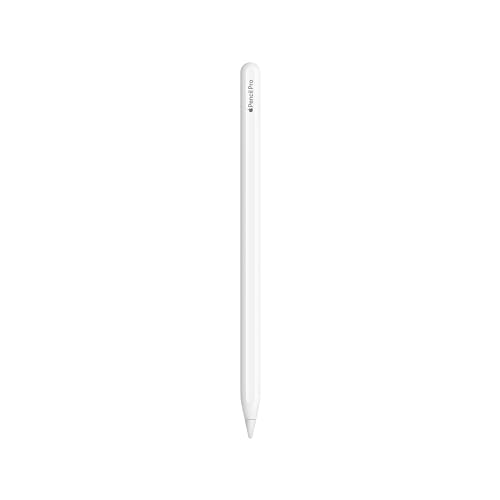
Apple iPad Pro 12.9-inch (M4) with Apple Pencil Pro
The iPad Pro runs drawing apps like Procreate directly on the device, skipping the separate computer every other tablet here requires. Apple Pencil Pro adds a barrel roll gesture and haptic feedback on top of standard pressure and tilt support. A battery lasting most of a day makes it the only option here suited to sketching away from a desk.
Pros
- No separate computer needed to draw or paint
- Portable battery-powered design works away from a desk
- Large app library beyond dedicated art software
Cons
- Professional desktop software like Photoshop runs in a limited mobile version
- Higher cost once the iPad, Apple Pencil and a case are added together

Huion Inspiroy 2 M
Huion aims the Inspiroy 2 M at beginners trying digital art for the first time, pricing it well below any screen tablet on this list. The battery-free pen still reads 8192 pressure levels, giving new artists a realistic feel for how pressure sensitivity works before upgrading later. Eight customizable shortcut keys sit along the side for common tool shortcuts.
Pros
- Low price removes the risk of a costly first purchase
- 8192 pressure levels still give an accurate feel for pressure control
- Shortcut keys help new users learn tool switching habits
Cons
- No screen means a learning curve separating hand and eye focus
- Wired-only connection limits where the tablet can be used

XP-Pen Deco Pro MW
XP-Pen builds Bluetooth directly into the Deco Pro MW, letting it connect to a laptop without a USB dongle taking up a port. The battery-free pen still covers 8192 pressure levels and tilt recognition, matching the feel of corded competitors. A metal-bodied design feels sturdier than the brand’s plastic entry-level tablets.
Pros
- Bluetooth connection frees up a laptop’s limited USB ports
- Metal housing feels more durable than entry-level plastic tablets
- Battery-free pen avoids a stylus that needs charging
Cons
- Bluetooth connection can lag slightly behind a wired connection
- Still needs a separate computer like other pen-only tablets
What matters most
What to look for in a drawing tablet Screen tablets let an artist draw directly on the image, while pen-only tablets keep the drawing surface separate from a monitor and cost less as a result. Tablet computers like the iPad Pro fold the computer itself into the device, trading some professional software compatibility for portability. Pressure sensitivity, measured in levels like 8192, affects how smoothly a line thins and thickens under more or less hand pressure. A stand or adjustable angle matters for comfort during long sessions, especially on screen tablets used for hours at a time.
Screen tablets versus pen-only tablets The Wacom Cintiq Pro 16, XP-Pen Artist 16 2nd Gen and Huion Kamvas Pro 16 all put a display under the pen, so the hand and eye stay in the same spot. The Wacom Intuos Pro, Huion Inspiroy 2 M and XP-Pen Deco Pro MW skip the screen, pairing with a separate monitor at a noticeably lower price. Screen tablets suit artists who find the eye-hand separation of a pen-only tablet distracting, while pen-only tablets suit anyone already comfortable with that separation or working on a tighter budget.
Best fit for beginners and students Students and beginners testing digital art for the first time should start with the Huion Inspiroy 2 M, since its low price limits the risk if the hobby does not stick. Anyone ready to commit to regular practice but still mindful of cost should consider the XP-Pen Artist 16 2nd Gen, which adds a screen without flagship pricing. Both options teach the same pressure sensitivity skills a pricier tablet would, just without the extra display cost upfront.
Best fit for professionals and portable artists Professional studios standardizing on consistent color and pressure response should choose the Wacom Cintiq Pro 16, since its ecosystem and support remain the industry default. Freelance artists who travel or sketch outside a home studio get more practical use from the Apple iPad Pro, which needs no separate computer at all. Mid-tier professionals focused on color-critical illustration work without Wacom’s full price tag should look at the Huion Kamvas Pro 16 instead.
How they stack up
| # | Model | Display | Best for | Score | Price |
|---|---|---|---|---|---|
| 1 | Wacom Cintiq Pro 16 | 15.6-inch 4K, pen display | Best overall for professional digital artists | 9.3 | Check price |
| 2 | Wacom Intuos Pro (Medium) | Medium, 8.7 x 5.8 inches | Best pen tablet without a screen | 8.8 | Check price |
| 3 | XP-Pen Artist 16 (2nd Gen) | 15.6-inch Full HD, pen display | Best value screen tablet | 8.5 | Check price |
| 4 | Huion Kamvas Pro 16 (2.5K) | 15.8-inch 2.5K, wide color gamut | Best for color accuracy on a mid-range screen tablet | 8.6 | Check price |
| 5 | Apple iPad Pro 12.9-inch (M4) with Apple Pencil Pro | 12.9-inch Liquid Retina XDR | Best for portability and a built-in app ecosystem | 8.9 | Check price |
| 6 | Huion Inspiroy 2 M | Medium, roughly 10 x 6.25 inches | Best budget pen tablet for beginners | 7.9 | Check price |
| 7 | XP-Pen Deco Pro MW | Medium, roughly 10 x 6.25 inches | Best for wireless freedom on a pen-only tablet | 8.1 | Check price |
Frequently asked questions
What is the difference between a screen tablet and a pen tablet?
A screen tablet like the Wacom Cintiq Pro 16 lets an artist draw directly on the display, while a pen tablet like the Wacom Intuos Pro requires looking at a separate monitor while drawing on a blank surface.
Do I need a computer to use a drawing tablet?
Screen tablets and pen-only tablets, including every Wacom, XP-Pen and Huion model here, need a separate computer, while the Apple iPad Pro works as a standalone device.
How many pressure levels do I actually need?
8192 pressure levels, found on most tablets in this list, covers the range professional illustration software recognizes, and going higher brings little practical benefit.
Is the iPad Pro good enough for professional illustration work?
The iPad Pro handles apps like Procreate well, though desktop programs like the full version of Photoshop run in a more limited mobile form compared to a computer-connected tablet.
What is a good beginner drawing tablet?
The Huion Inspiroy 2 M suits beginners well, since its low price and 8192 pressure levels teach core skills without a big upfront cost.
Does a wireless pen tablet lag behind a wired one?
The XP-Pen Deco Pro MW’s Bluetooth connection can lag slightly compared to a wired connection, though most users will not notice during normal sketching.
Why do screen tablets cost more than pen-only tablets?
The display itself, along with the glass and anti-glare coating needed to draw on it comfortably, adds significant manufacturing cost compared to a pen-only surface.
Can I use a drawing tablet with a laptop instead of a desktop?
Yes. Most pen tablets and screen tablets here connect over USB-C, and models like the XP-Pen Deco Pro MW also support Bluetooth for a laptop with limited ports.
Is tilt recognition important for a drawing tablet?
Tilt recognition, available on the Wacom Cintiq Pro 16, Wacom Intuos Pro, Huion Kamvas Pro 16 and XP-Pen Deco Pro MW, helps shading tools behave more like a real pencil held at an angle.
What is the best drawing tablet for color-critical work?
The Huion Kamvas Pro 16 covers a wider color gamut than typical mid-range screen tablets, making it a solid pick for color-sensitive illustration without Wacom’s full price.
The bottom line
Professional studios should choose the Wacom Cintiq Pro 16 for its color accuracy and industry-standard pressure response. Artists on a tighter budget should pick the XP-Pen Artist 16 2nd Gen instead, since it keeps a similar pressure range without the flagship price. Anyone who sketches away from a desk should skip a screen tablet entirely and choose the Apple iPad Pro.
Marcus Chen
Marcus covered consumer electronics for enthusiast tech publications for six years before joining ChoiceCrest. He specializes in translating manufacturer spec sheets into plain-language buying advice, with a focus on audio, computing accessories and smart-home gear.